To make changes in Brainstork's media library, you need to have a Brainstork manager or project manager account. As a manager, you can upload different types of files including images, videos, and presentations to the media library.
You can navigate to the relevant section of the article by clicking on the corresponding option:
1. To Upload Material to the Media Library
2. To Preview&Delete the Media
Materials uploaded to the Media Library present in very high quality in the Session, regardless of the quality of the host’s internet connection.
To Upload Media to the Library:
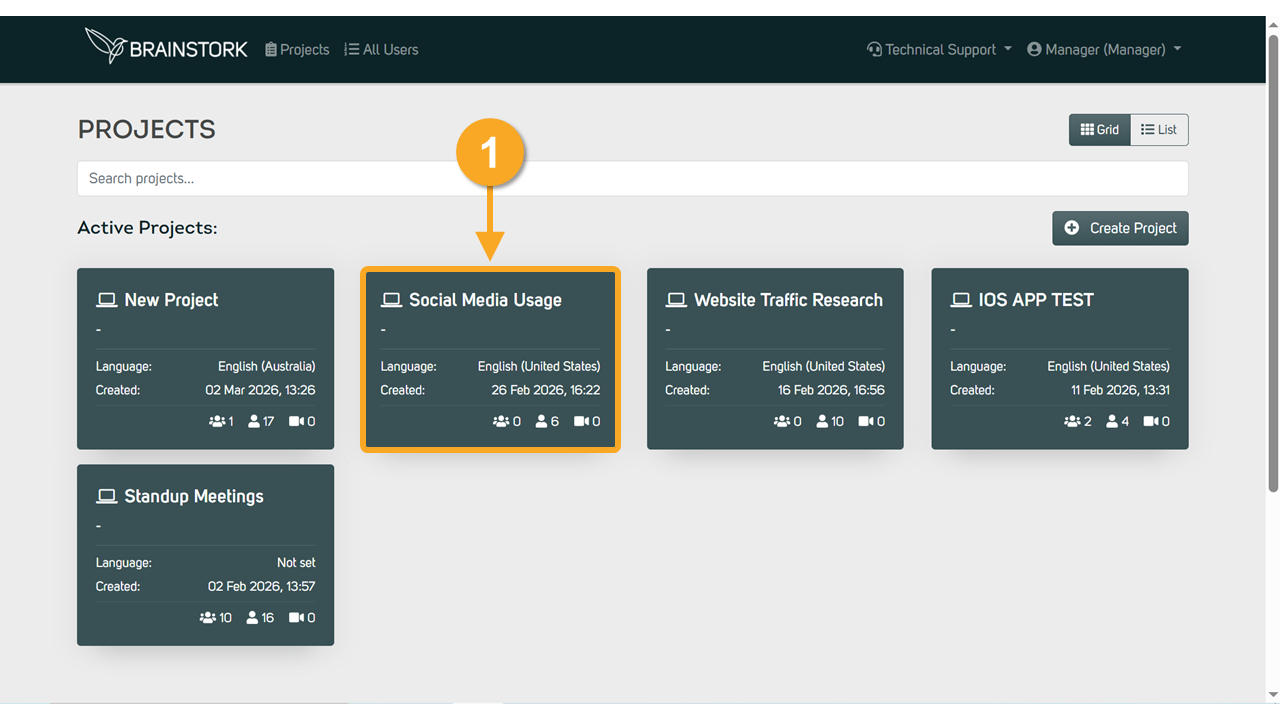
1. Select the project you wish to add media to its Media Library.
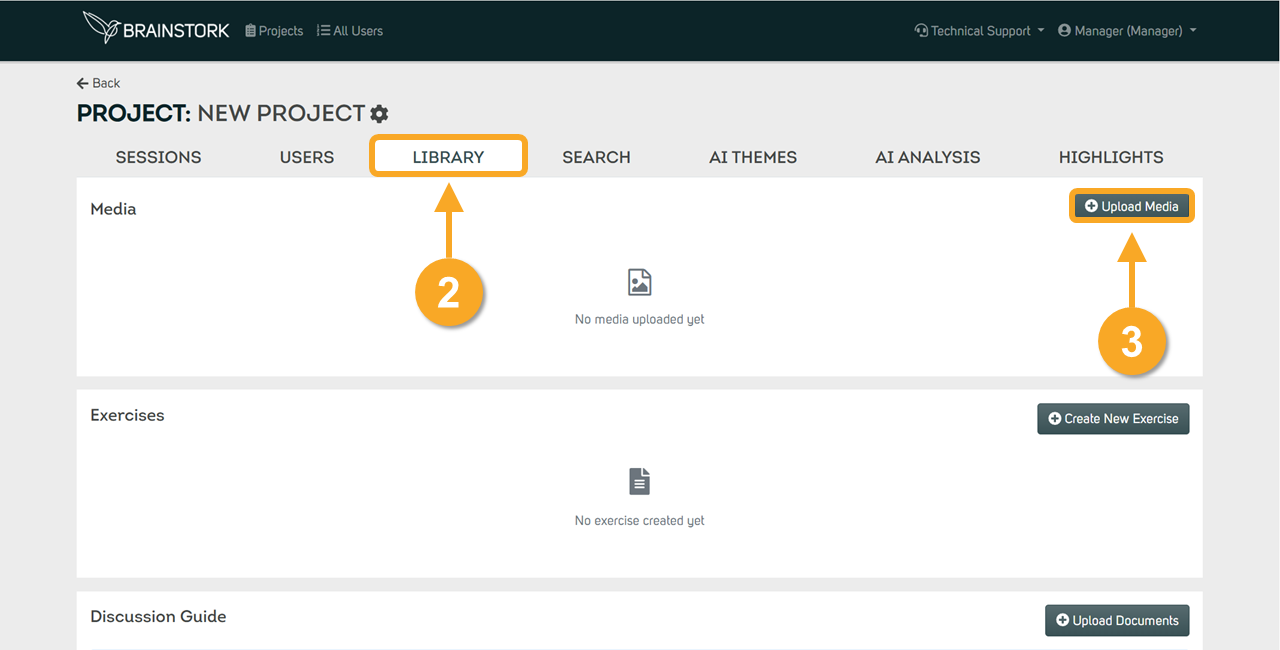
 2. Access the Library by clicking on the "Library" tab.
3. Click on "Upload Media" to select a file from your device.
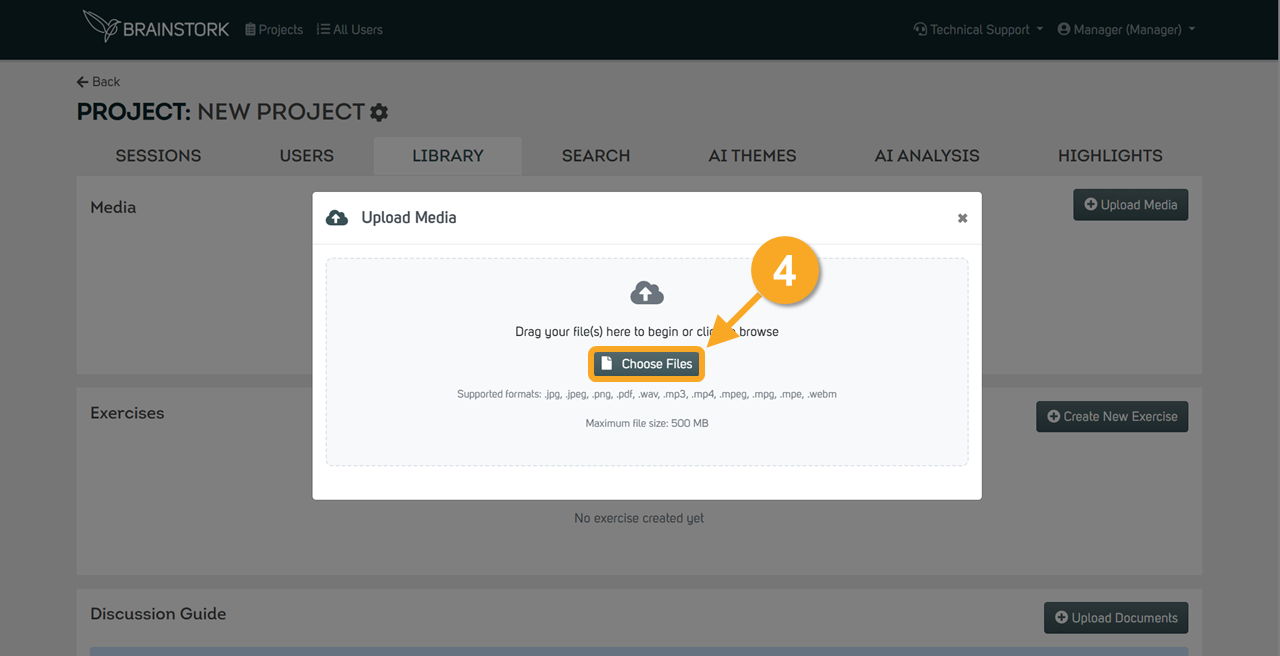
4. Click on choose files or drag and drop your selected file. The supported file formats are:
.jpg
.jpeg
.png
.pdf
.wav
.mp3
.mpeg
.mpg
.mpe
.webm.
5. After you upload material to the library you will see it in the list. Your documents will be available for sessions after optimization (up to 10 minutes).
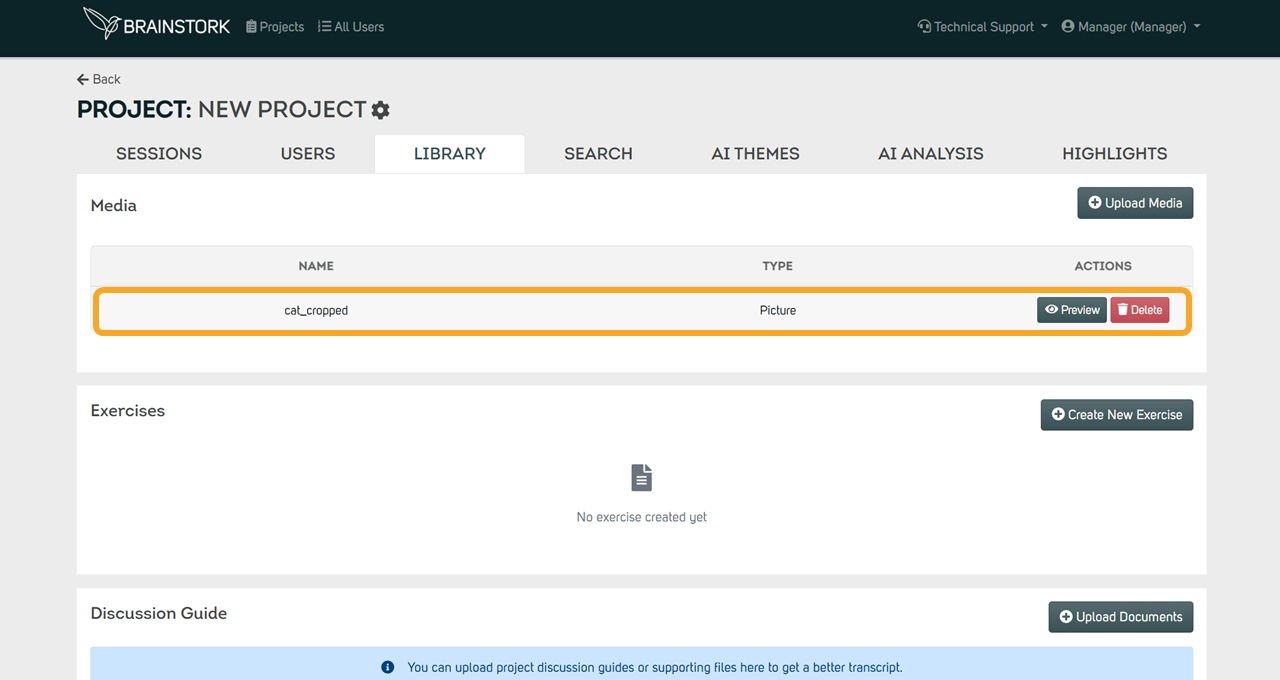
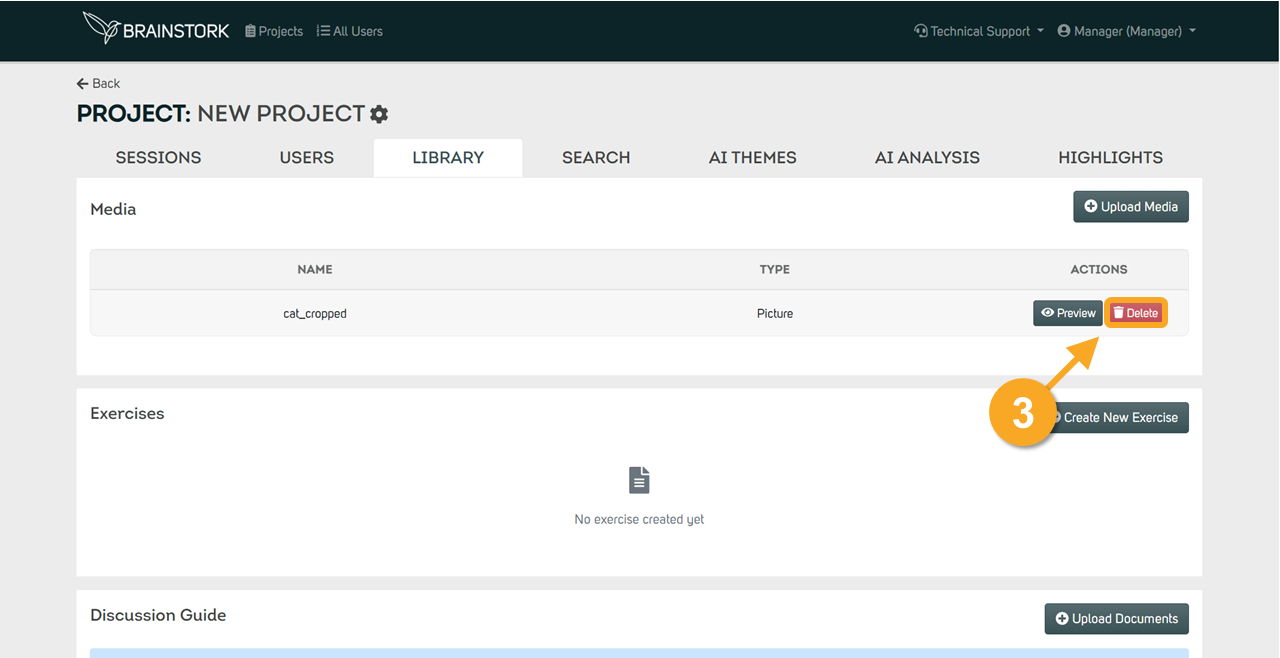
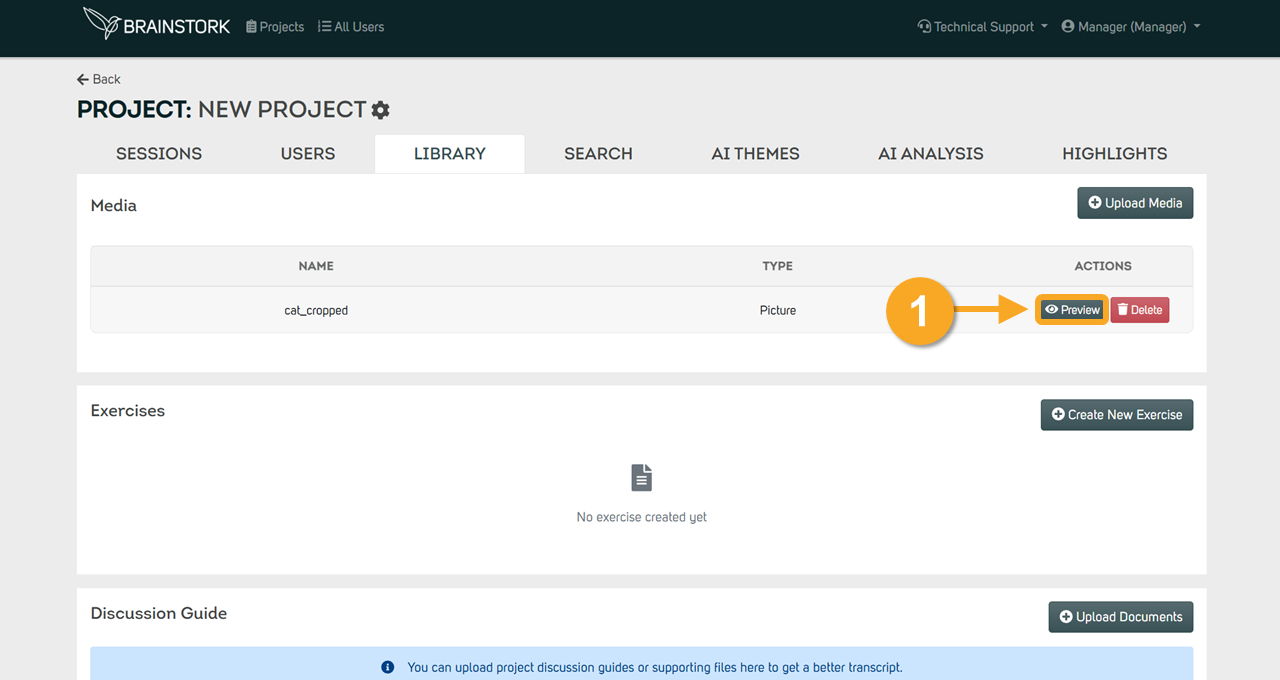
1. Click the "Preview" button to preview the media.
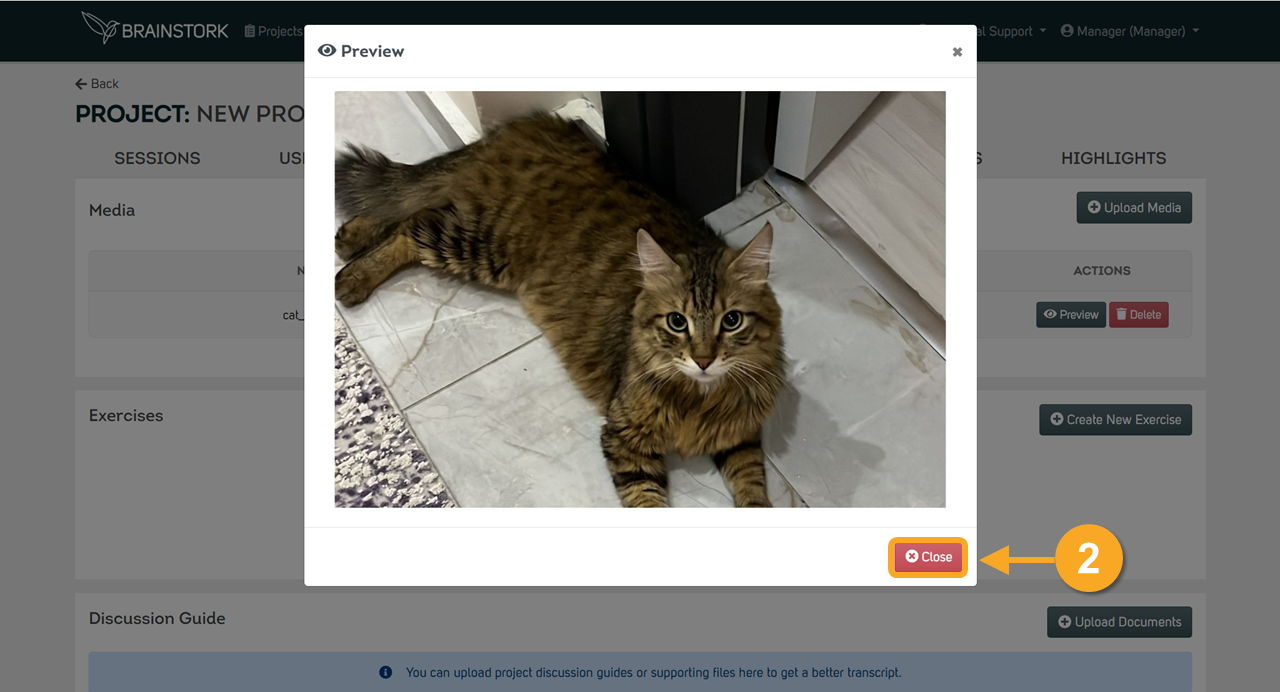
2. Once you have finished previewing the media, simply click "Close" in the bottom right corner to close the preview box.
3. To delete a media, simply click "Delete" next to the desired item.
4. To confirm the deletion, click the "OK" button in the confirmation box.