AI Analysis allows you to generate AI-powered summaries and insights for each question asked during your sessions. It analyzes all participant responses and creates a structured AI Answer supported by session-level breakdowns and sentiment distribution.
Run AI Analysis
1. Open your project.

2. Go to AI Analysis tab and click Begin AI analysis
3. Once the analysis has been completed, you will be able to add your questions

4. Click New Question and enter your question
5. Click Create.
Your question will now appear in the AI Analysis list. And the result will be generated in short.
Making the Most of AI Analysis
For each question:
Brainstork will analyze all relevant session responses and generate:
An AI Answer (summary of responses), number of answers and sessions analyzed, sentiment distribution (positive, neutral, negative), individual session response cards.
At the top of the expanded question, you will see:
A structured AI-generated summary, key themes mentioned across sessions, a high-level overview of participant responses, this gives you an immediate understanding of overall patterns without manually reviewing each session.
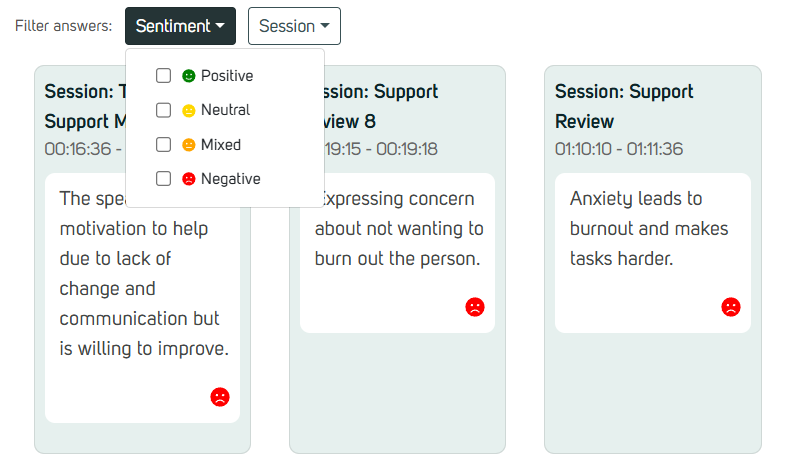
Filter by Sentiment
1. Use the Sentiment dropdown.
2. Select Positive, Neutral, or Negative.
The session responses will update based on your selection.
This helps you quickly identify emotional patterns across answers.
Filter by Session
1. Click the Session dropdown.
2. Select one or multiple sessions.
This allows you to focus on specific participants or compare selected sessions.
Open the Exact Video Moment
1. Click on a session response card.
2. Brainstork will open the session at the exact timestamp where the answer was given.
You can review the full context, tone, and surrounding discussion.
Add Additional Questions
You can add multiple research questions to the same project:
1. Click New Question.
2. Enter the question.
3. Click Create.
AI Analysis will generate insights separately for each question.
AI Analysis helps you quickly move from raw interview responses to structured insights per research question without manually reviewing hours of recordings.
