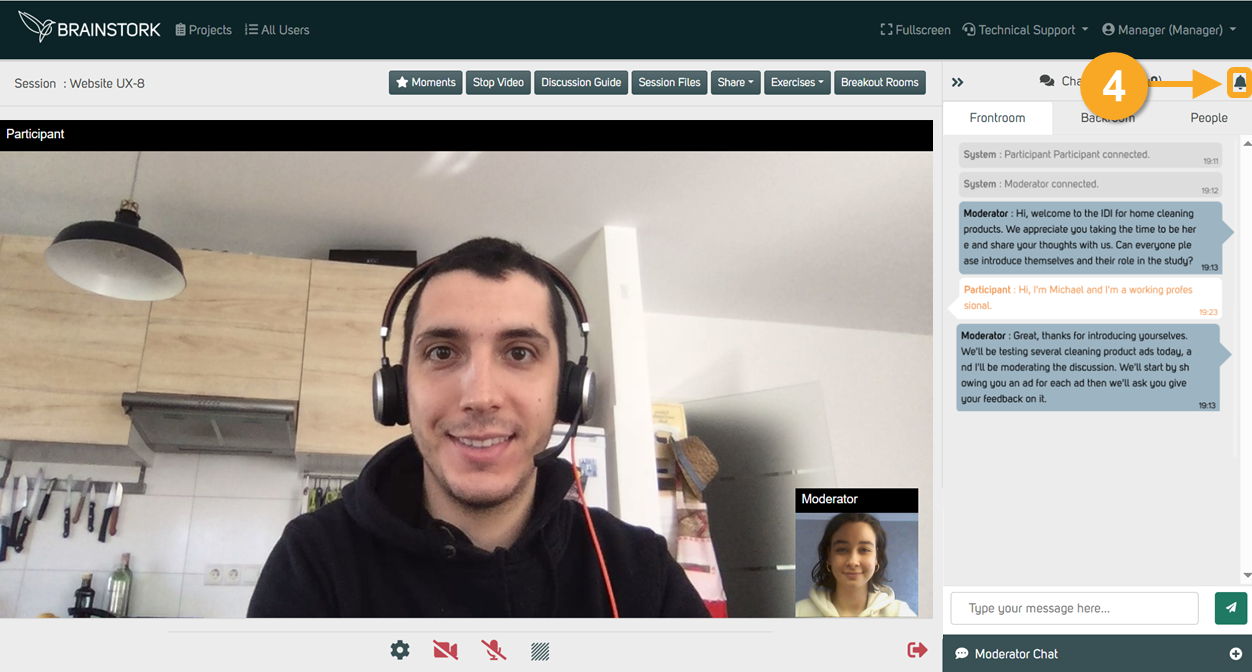
Brainstork has three chat channels, each visible to different people in the session.
1. Frontroom chat
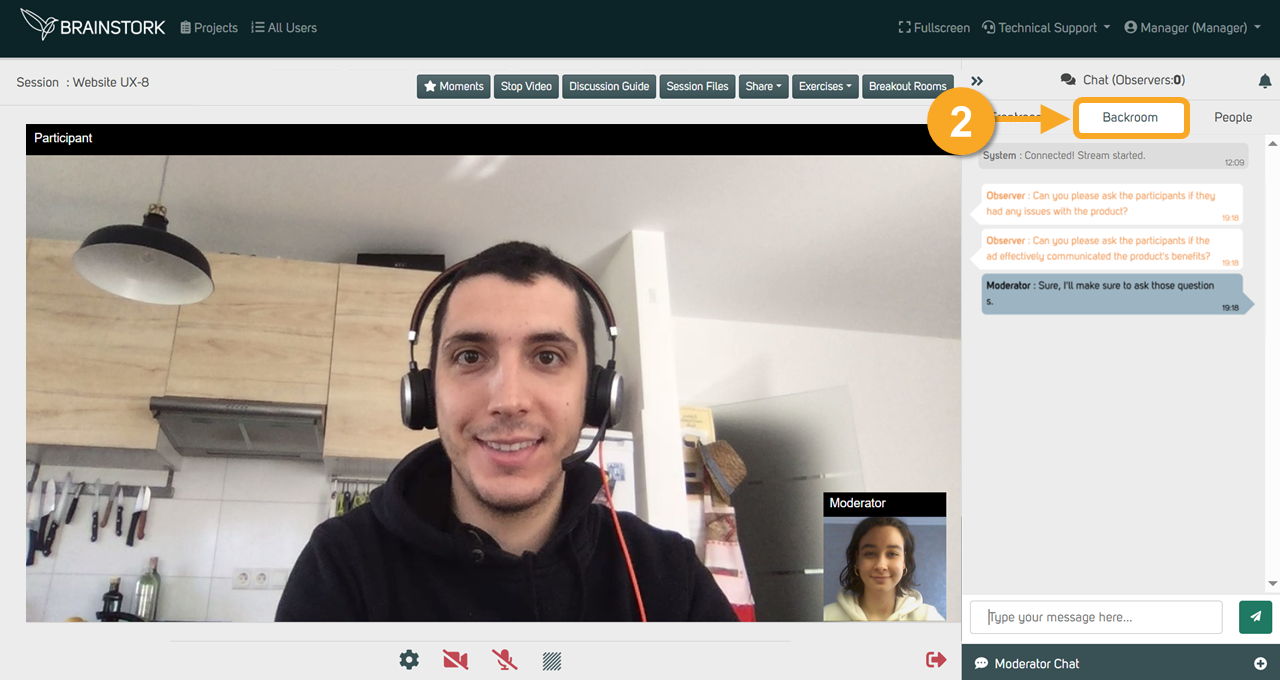
2. Backroom chat
3. Moderator chat
You can turn notifications on or off for each channel, and moderators can also start a group chat.
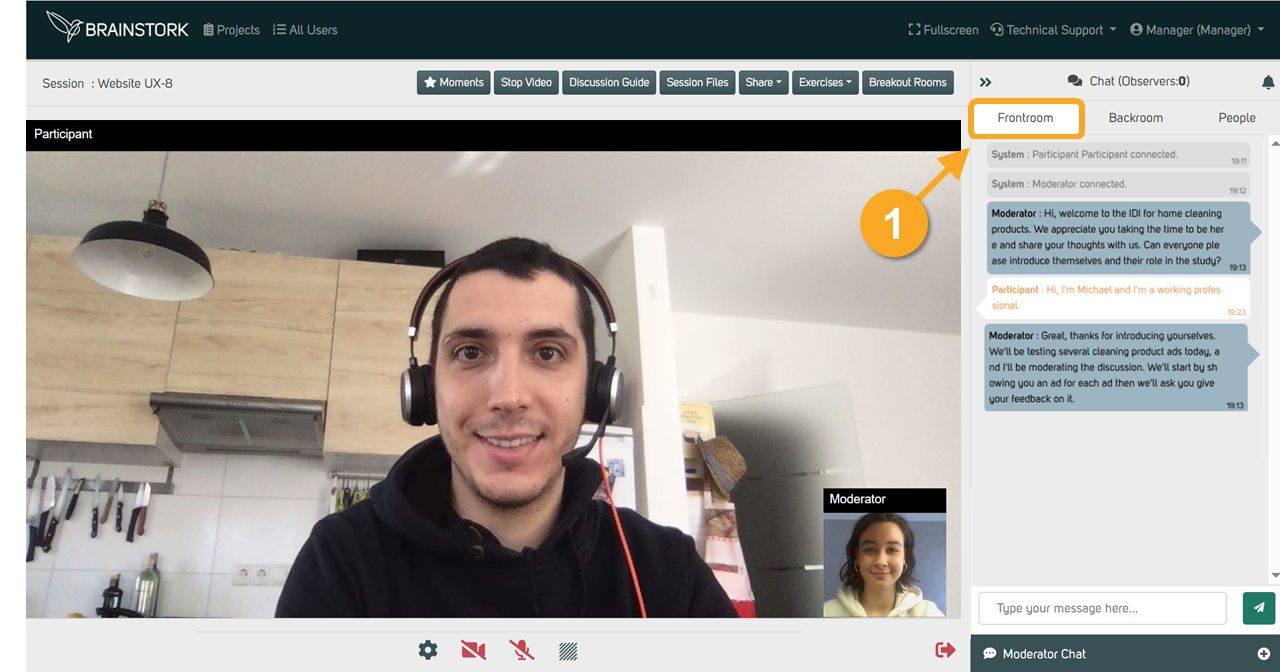
Frontroom chat
Visible to the moderator, co-moderators, and participants only. Translators and observers cannot see this channel.
Backroom chat
Visible to the moderator, co-moderators, observers, and translators. Participants cannot see this channel.
Moderator chat
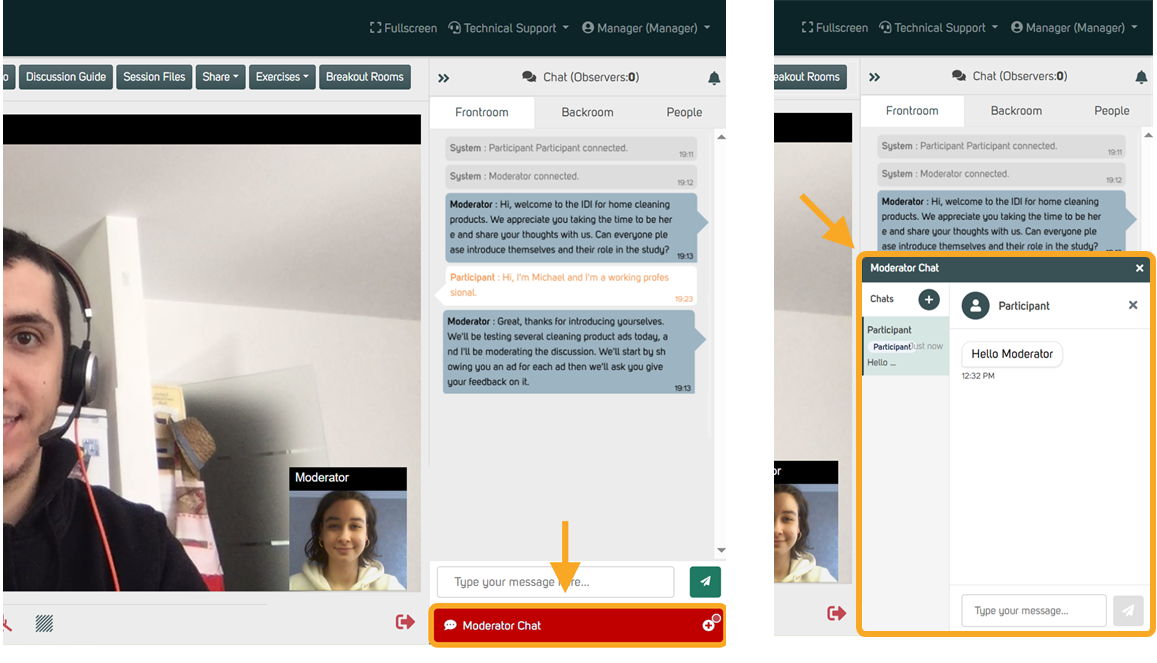
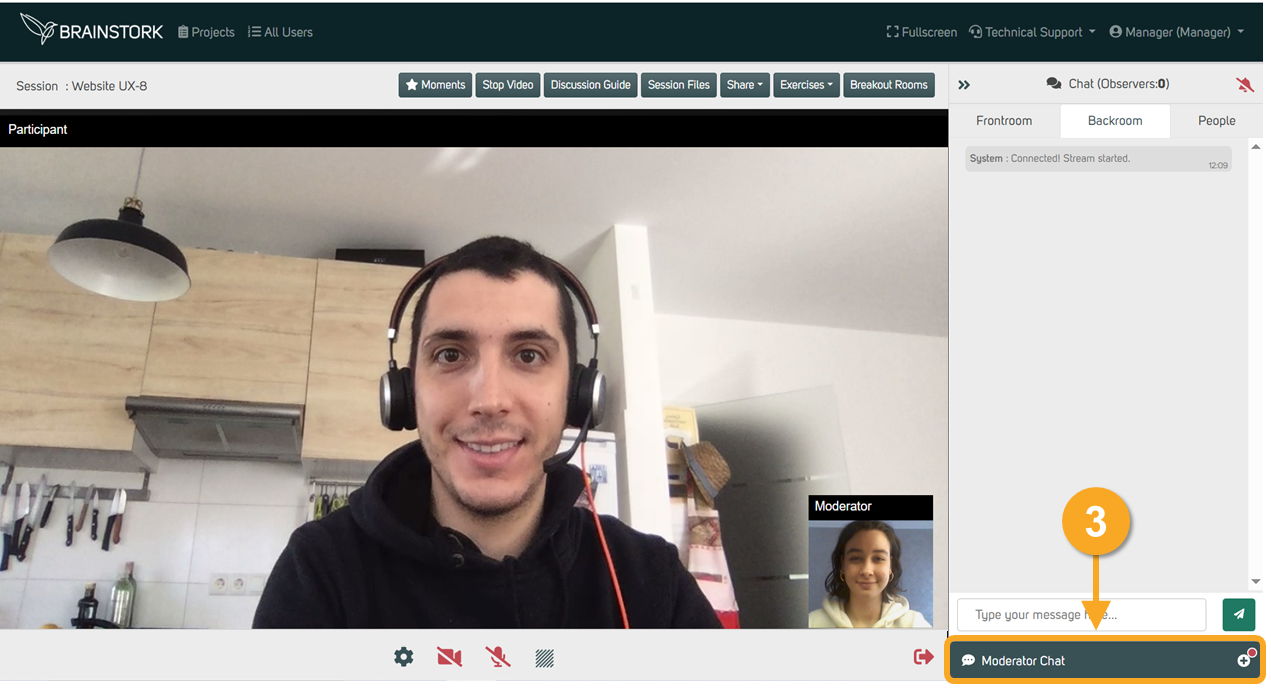
A private channel between the moderator and individual users. Any participant, observer, co-moderator, or translator can start a private conversation with the moderator, and the moderator can initiate one too. The other person is notified when a conversation is started.
-
Click Moderator chat at the bottom of the chat panel.
-
Select a user from the list to start or continue a private conversation.
Group chat
Moderators can create a group chat to message multiple users at once. Only the moderator can start one — once created, invited users can view and participate.
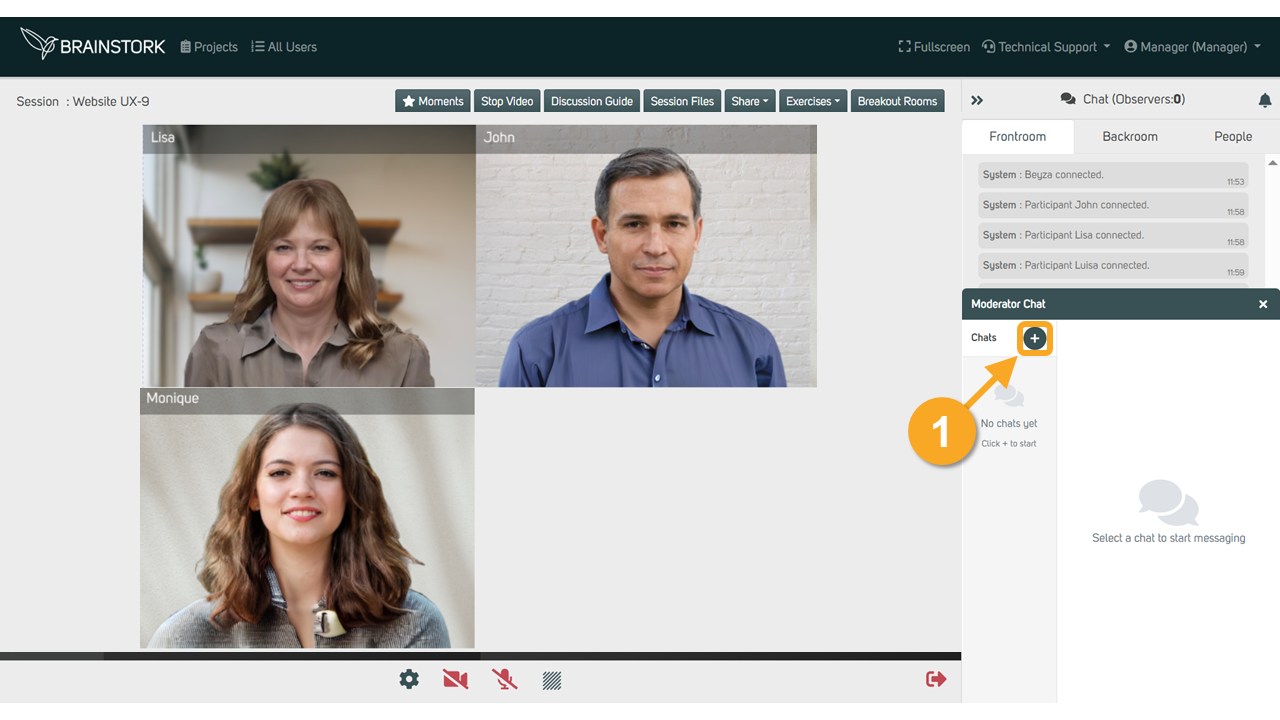
- To start a group chat, click the + button in the chat window.
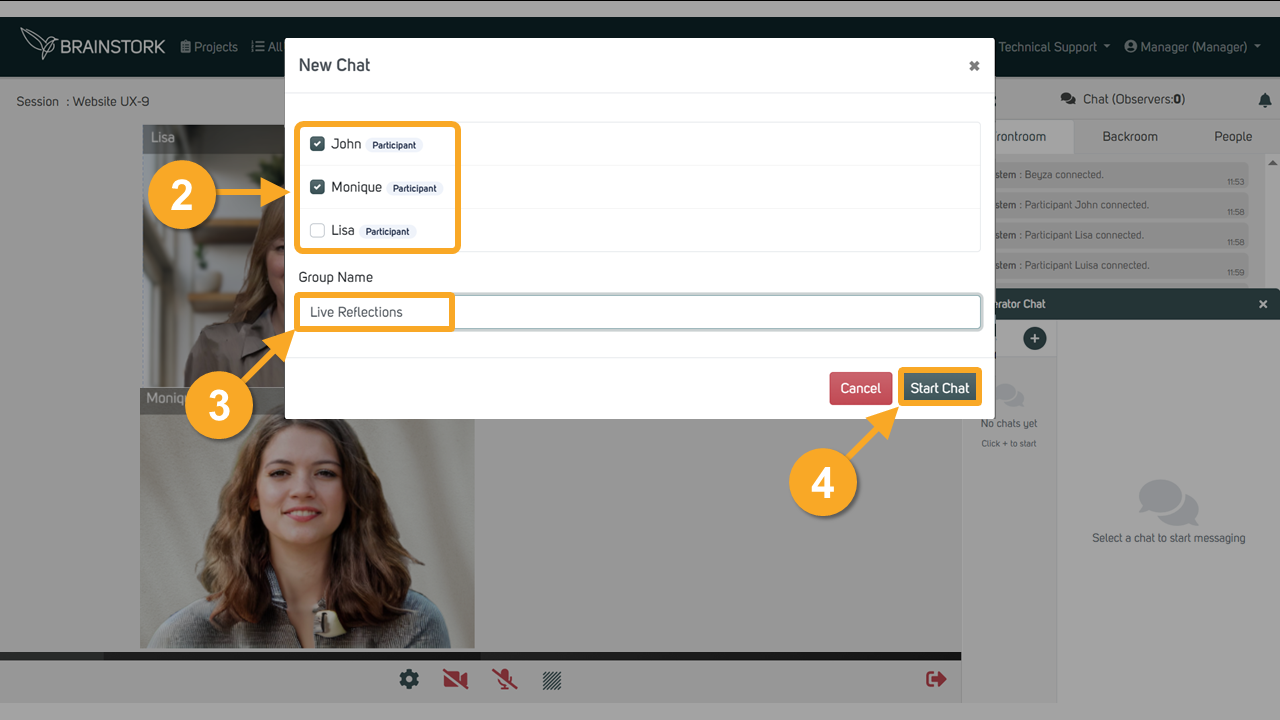
- Choose the members of the group chat.
- Enter a name for the group chat.
- Click Start chat.
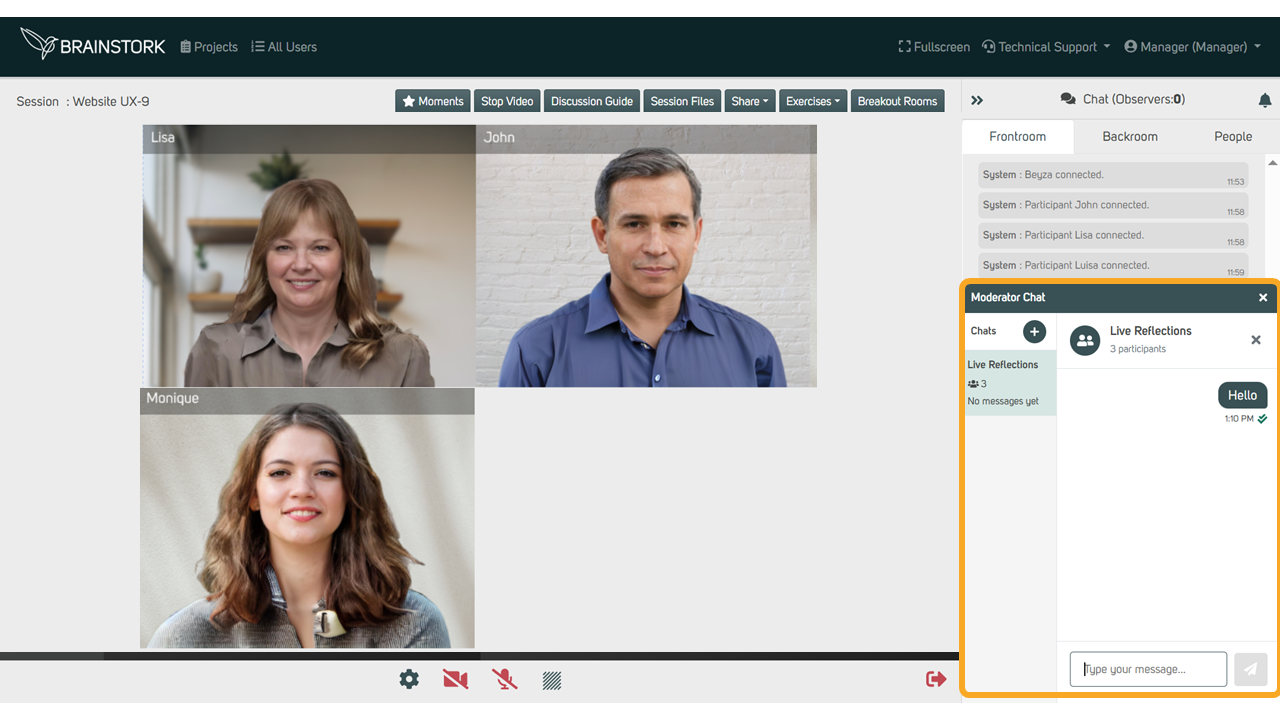
- The group chat will appear in your chat panel.
Turning off chat notifications
1. Click the bell icon to turn off notifications.
2. Minimize the chat window.
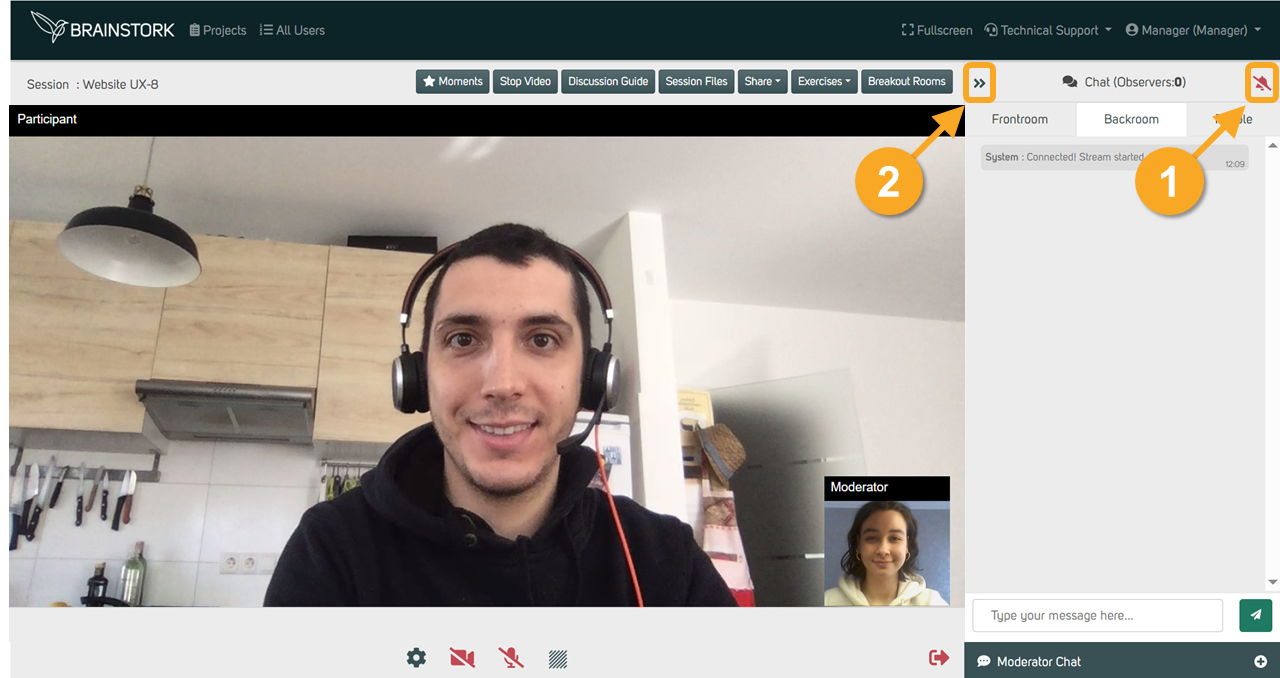
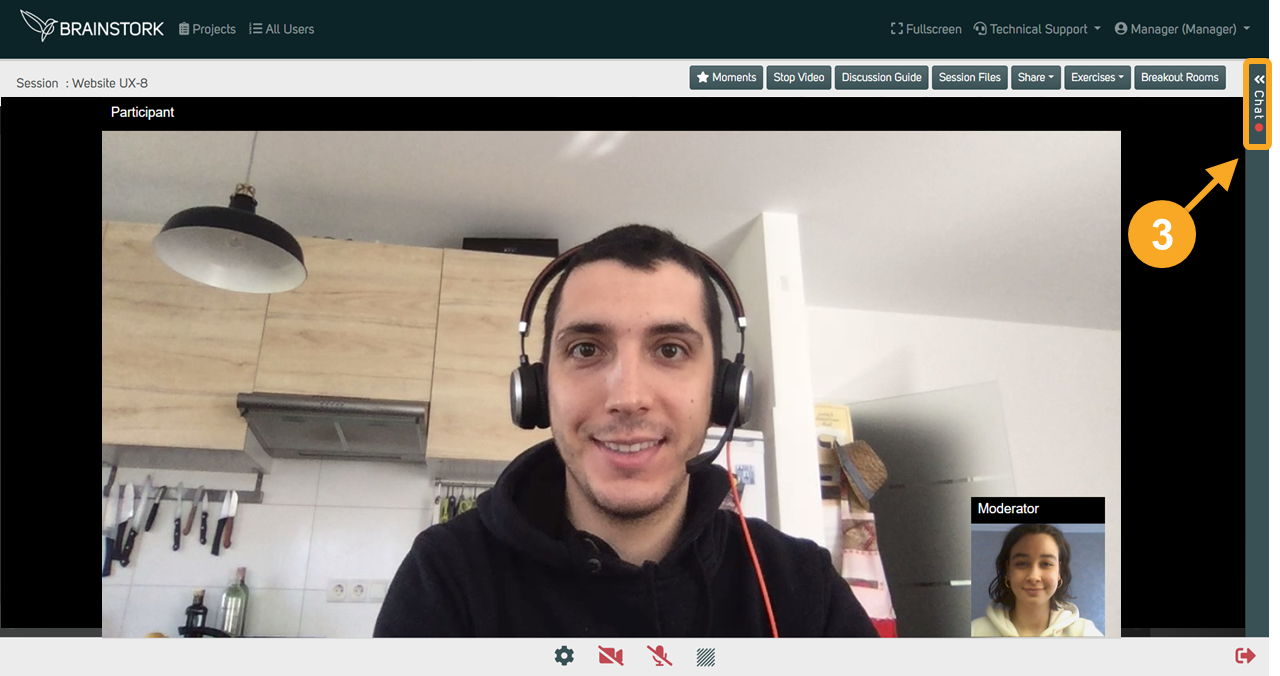
3. Only a red dot will appear when a new message arrives.
4. To turn notifications back on, click the bell icon again.