In Brainstork participants have two various chat channels to communicate with others. These are:
1. Frontroom Chat
2. Moderator Chat
You have the option to turn on or off notifications for channels.
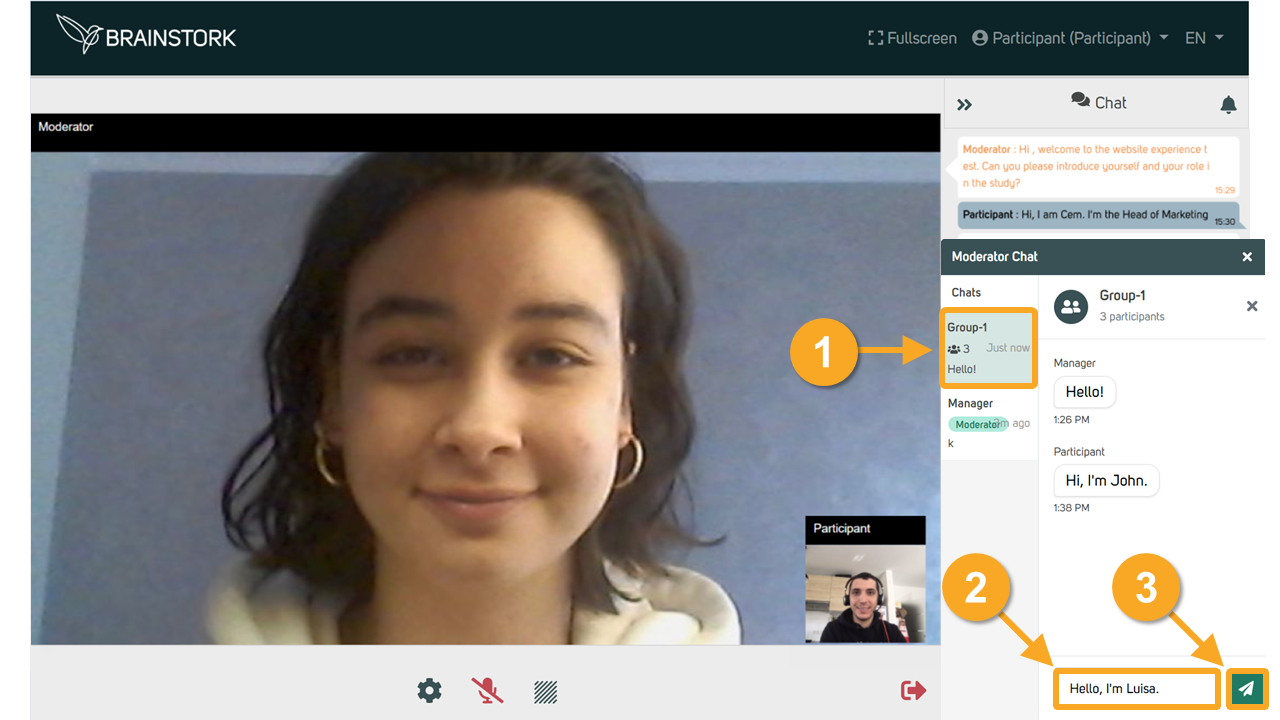
Additionally, the moderator may create a group chat during the session. If you are added to a group chat, you will receive a notification and can message everyone in that group.
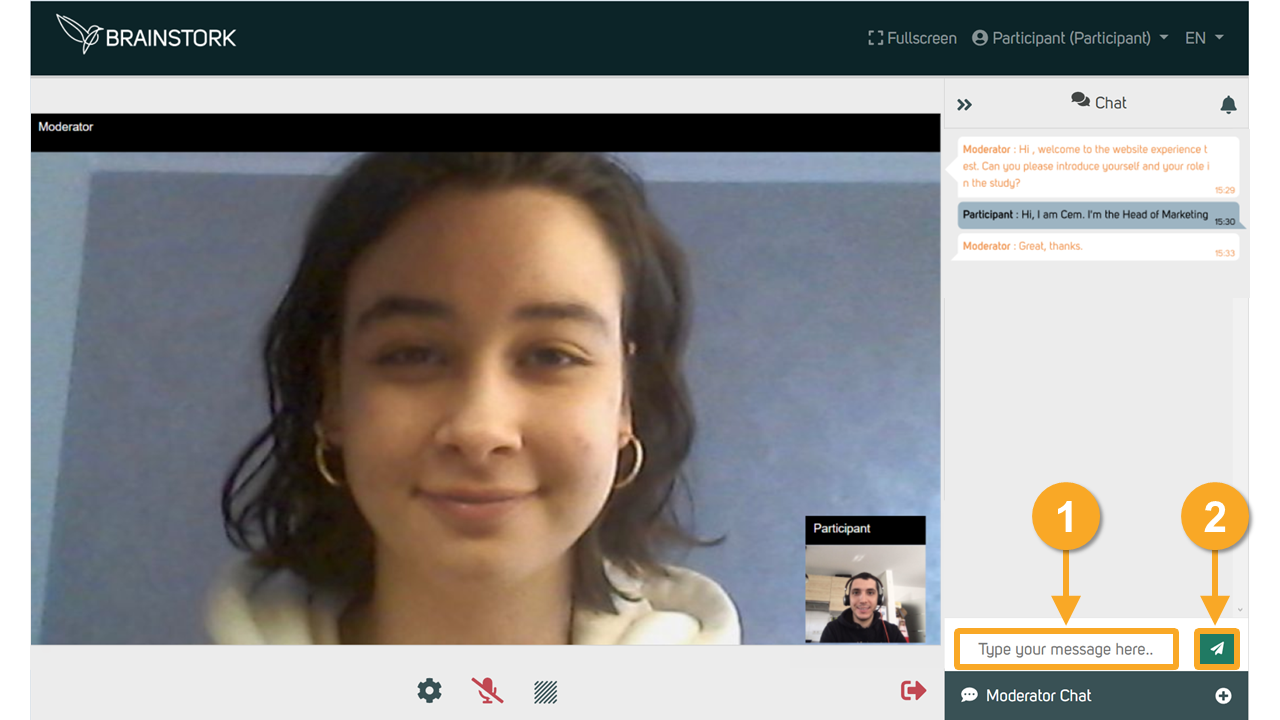
This chat window is exclusively for participants, co-moderators, and the moderator to communicate with each other.
You can type your message here and send it to chat with others.
This is a private channel between the moderator and each participant. A participant must initiate the chat with the moderator first. Once initiated, moderators are notified and can communicate with that user privately.
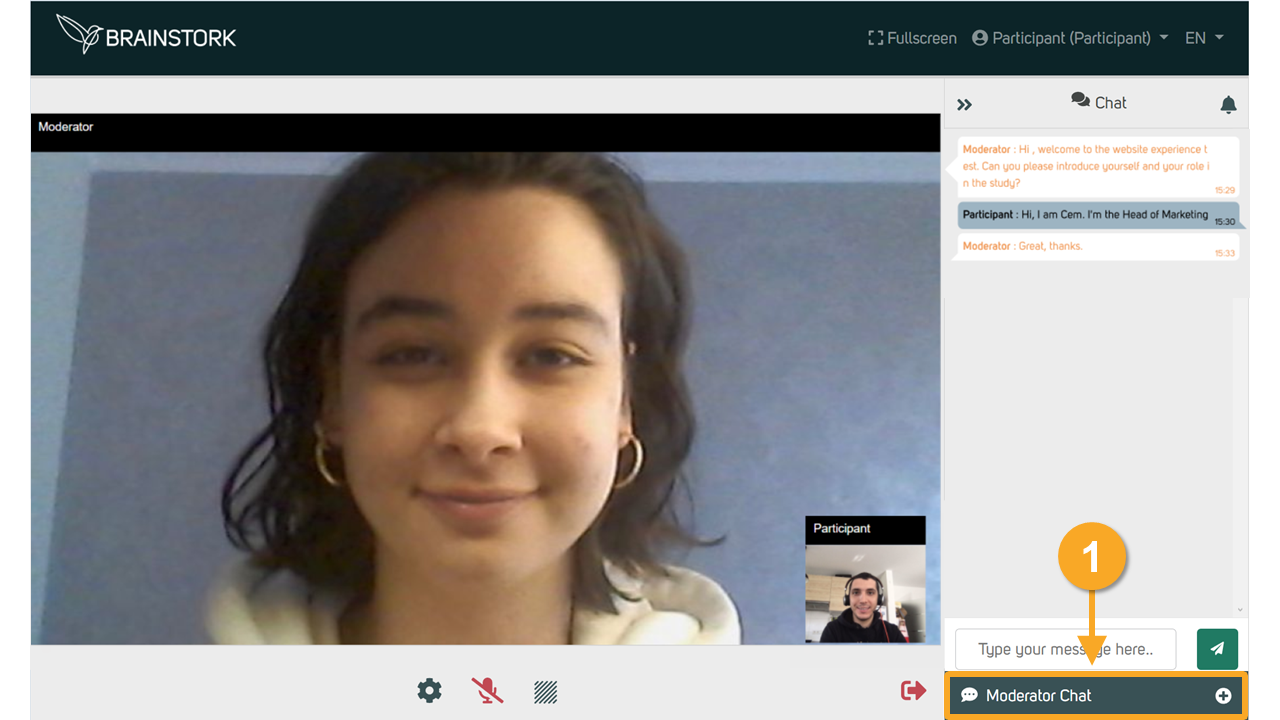
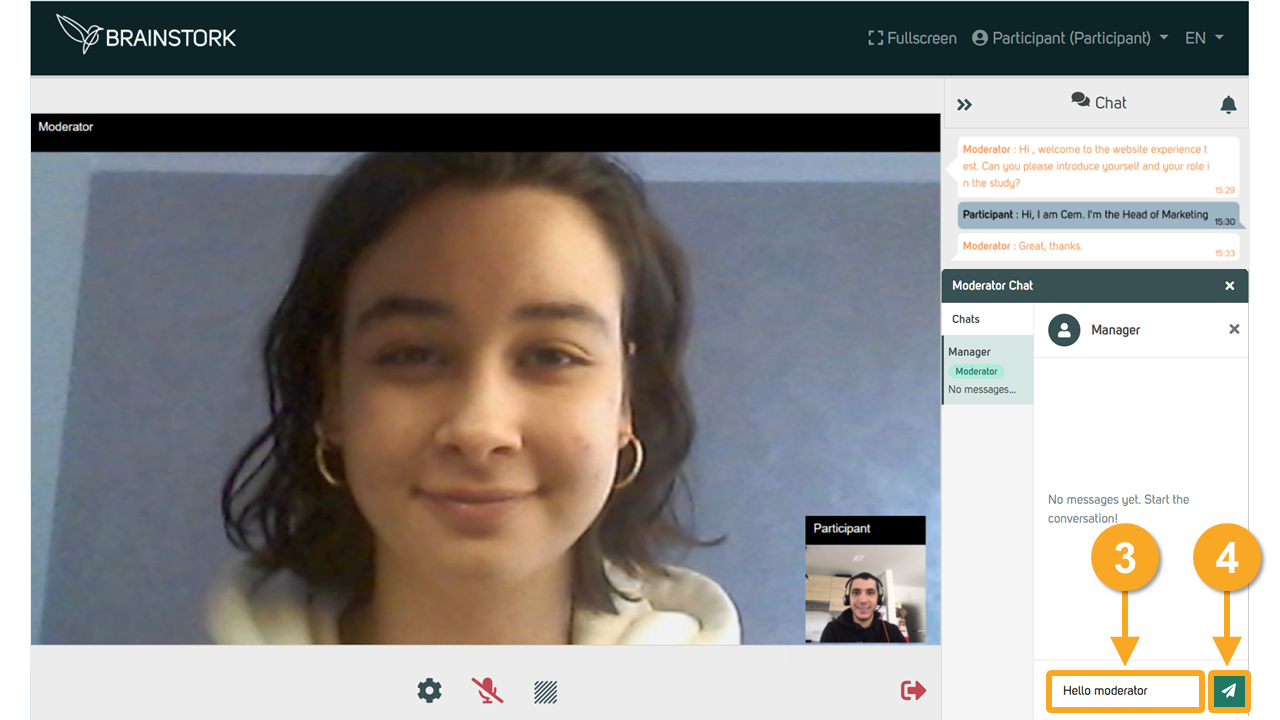
To initiate a conversation with the moderator, follow these steps:
1. Click on the "Moderator Chat" button to open the chat window.
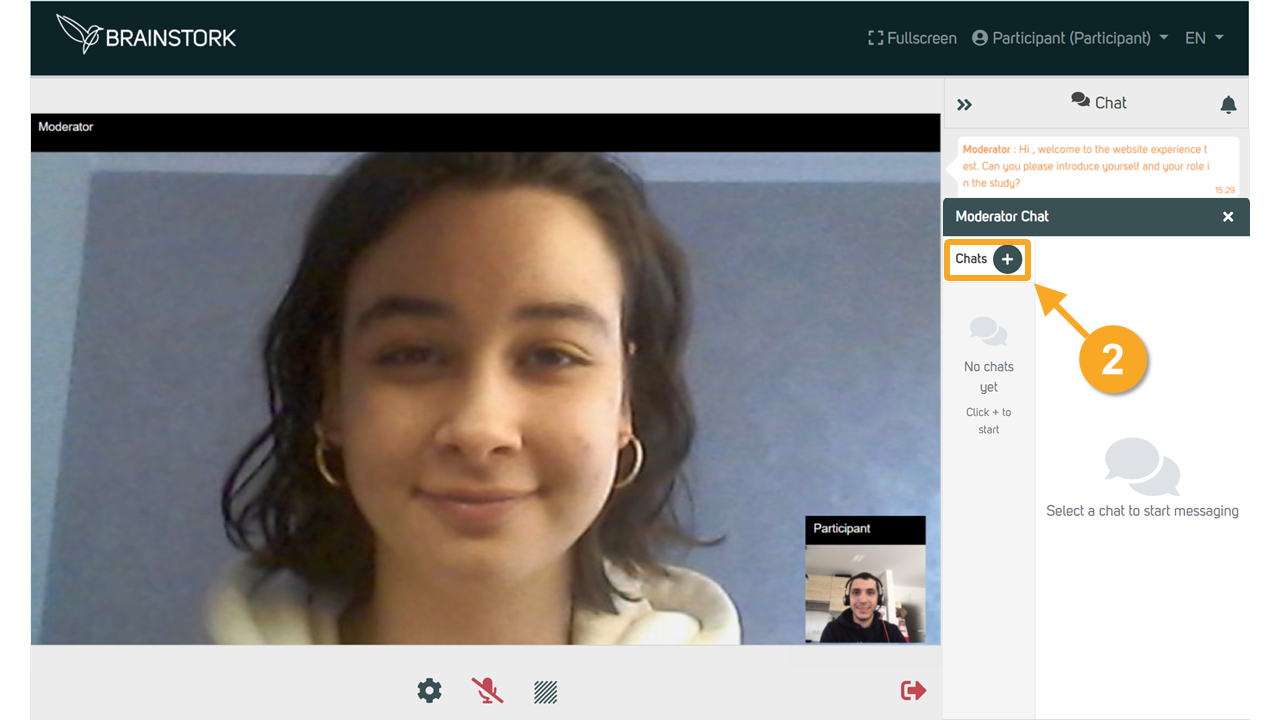
2. Click on "Start" to compose your message.
3. Type your message in the text box.
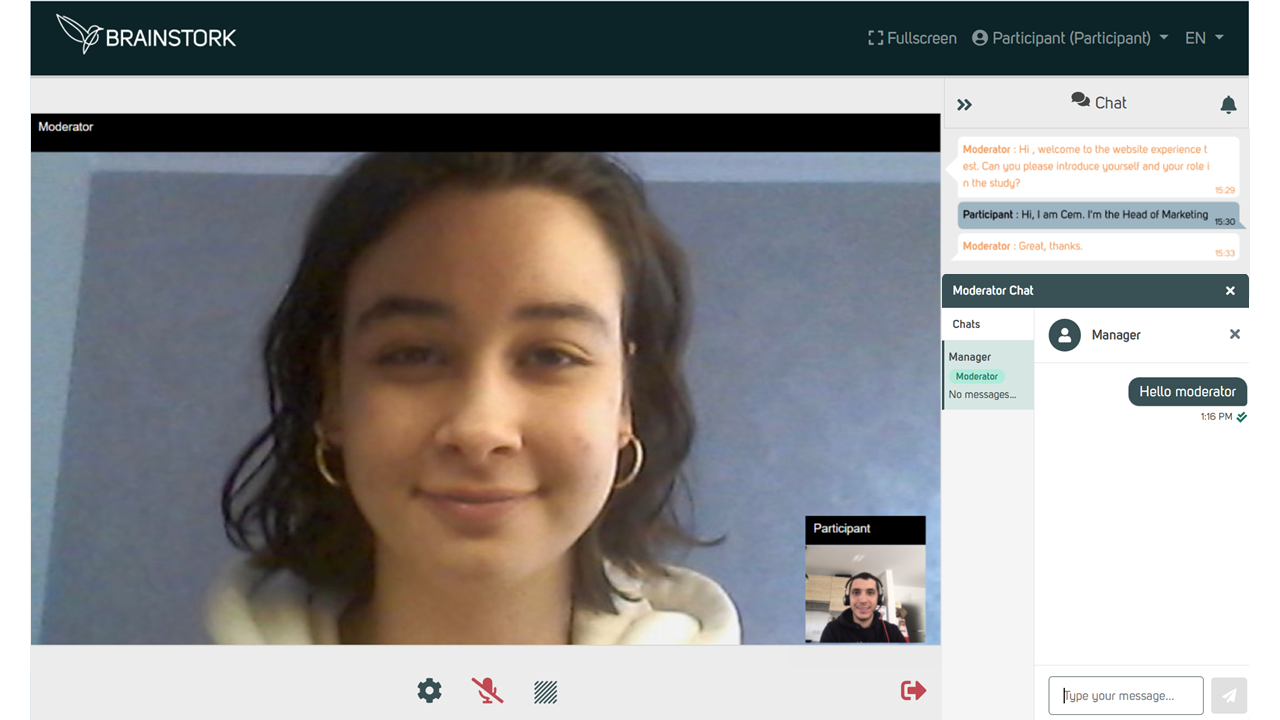
4. Click the send button to privately send your message to the moderator.
5. Your message has been successfully sent!
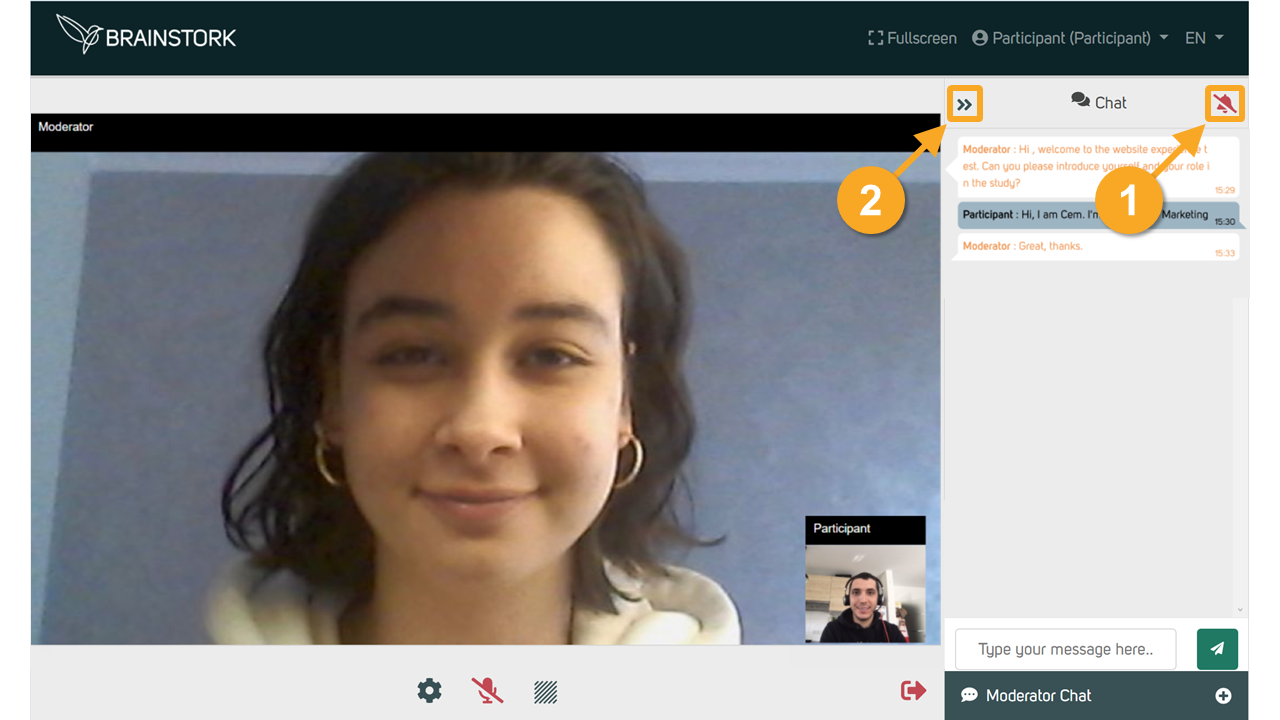
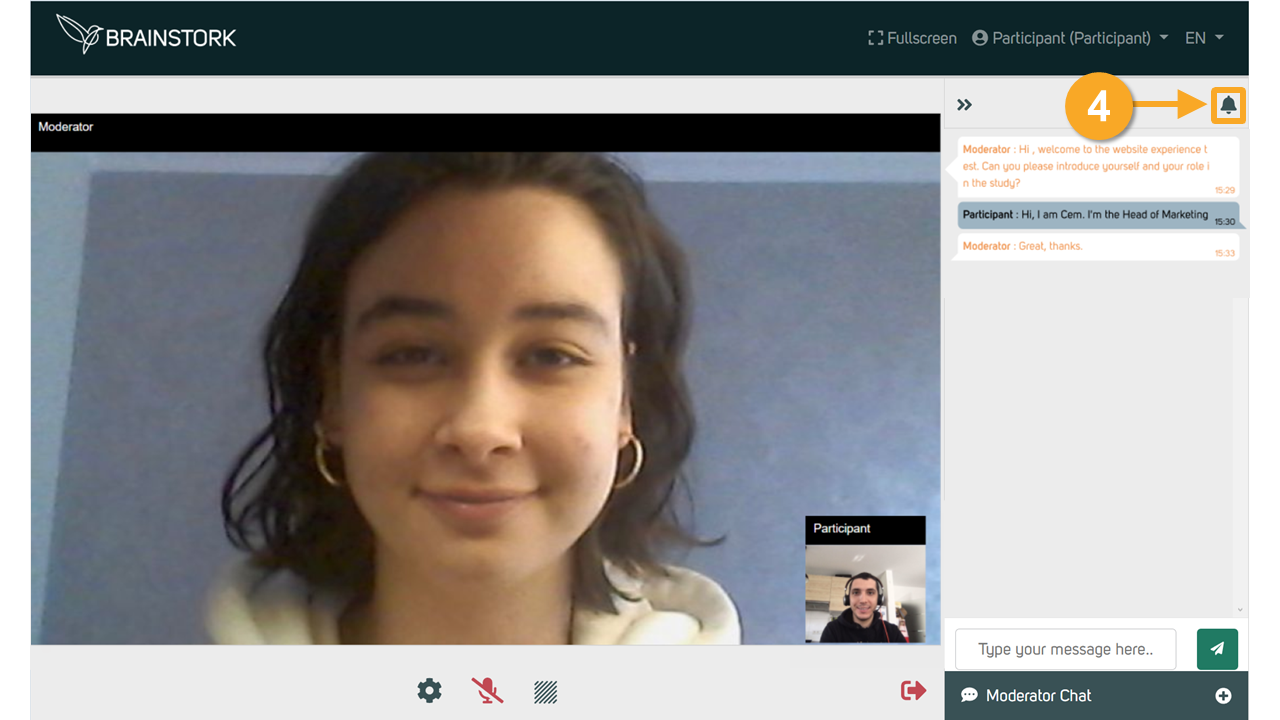
To Turn Off Chat Notifications:
1. Click the notification button. Once you click on the button, it will turn red.
2. You can minimize the chat window.
3. Only a red dot will appear when a new message arrives.
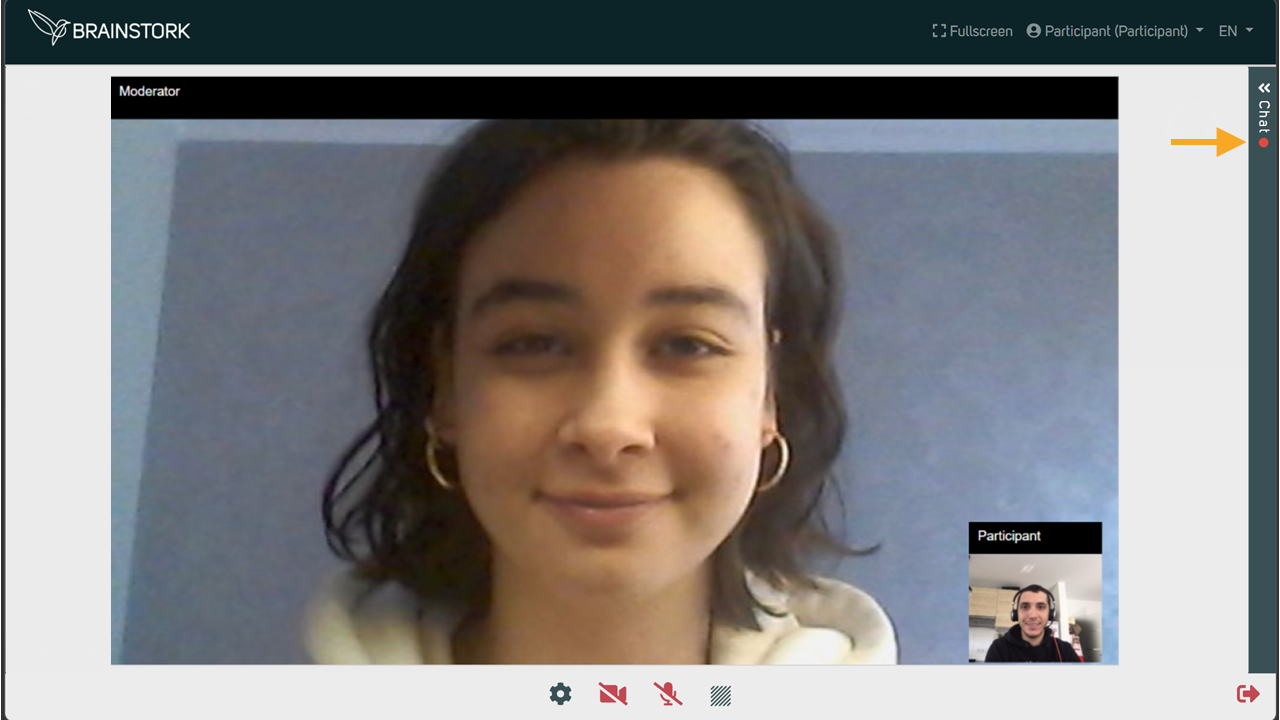
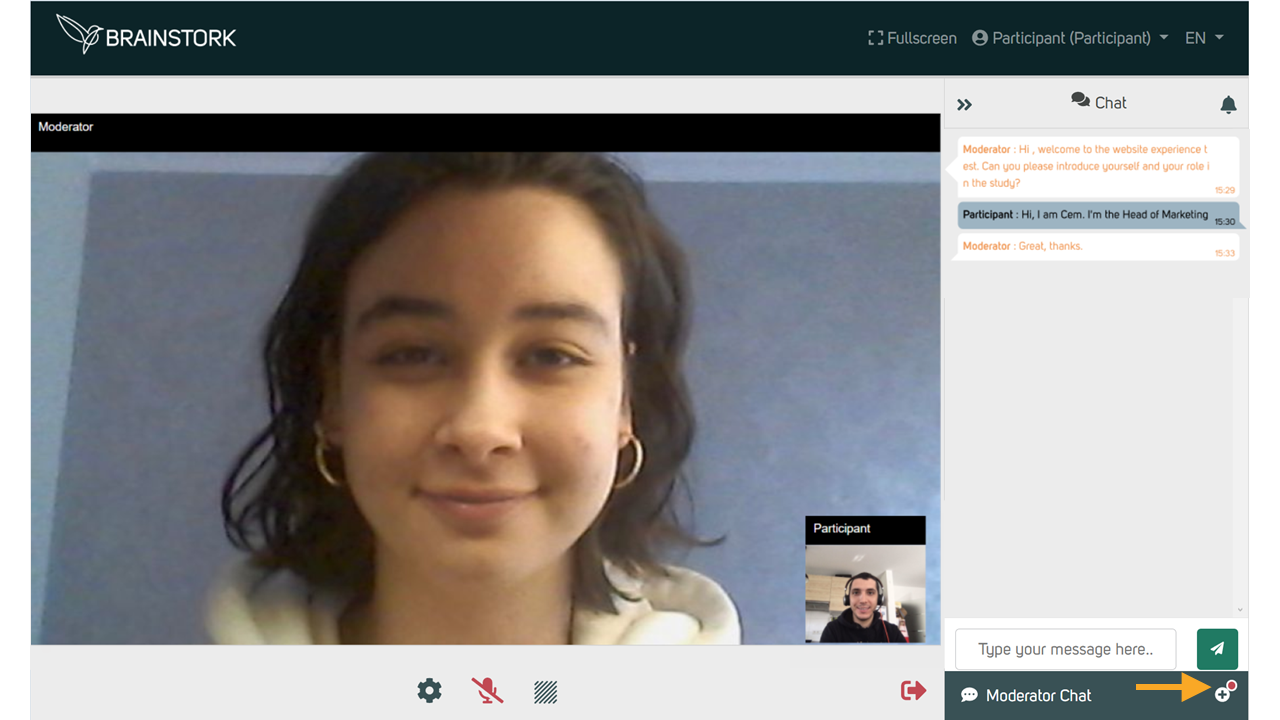
4. To turn notifications back on, simply click the notification button again.
Group Chat
The moderator may create a group chat during the session. If you are added to a group chat, you will receive a notification.
In a group chat, you can communicate privately with the other users included in that group.
-
To start chatting in the group chat, click on the group chat name from the chat list to open the conversation.
-
Type your message in the field at the bottom of the chat window.
-
Click the send icon to send your message to all members of the group.